When we think of Zabbix, the first image that comes to mind is CPU, memory, and network traffic graphs. But did you know that, working together with solutions like a Host IPS, it can be a vital component of your Cyber Defense strategy?
One of the most common tactics of malware and attackers (like rootkits) is to alter critical system files, whether to ensure persistence, modify DNS settings (such as when editing the /etc/hosts file), or inject malicious scripts into websites.
In this tutorial, I will teach you how to configure Zabbix to act as a FIM (File Integrity Monitor). You will be alerted the exact moment a sensitive file is modified on your server.
The Concept: How Does Integrity Monitoring Work in Zabbix?
We are not going to monitor the text content (which would be heavy for the database), but rather the digital signature (Checksum/Hash) of the file.
If you have a configuration file that shouldn’t change, its checksum must be constant. If someone edits even a single comma, the checksum changes drastically. It is this precise change that Zabbix will detect.
Step 1: Creating the FIM Monitoring Item
The first step is to tell Zabbix which file to “watch”. We will use the native key vfs.file.cksum.
Prerequisite: the client machine must have the Zabbix agent for Linux installed.
Assuming you have already completed the Zabbix installation, go to Data collection > Hosts.
Click on the three dots (…) next to the host you want to monitor.
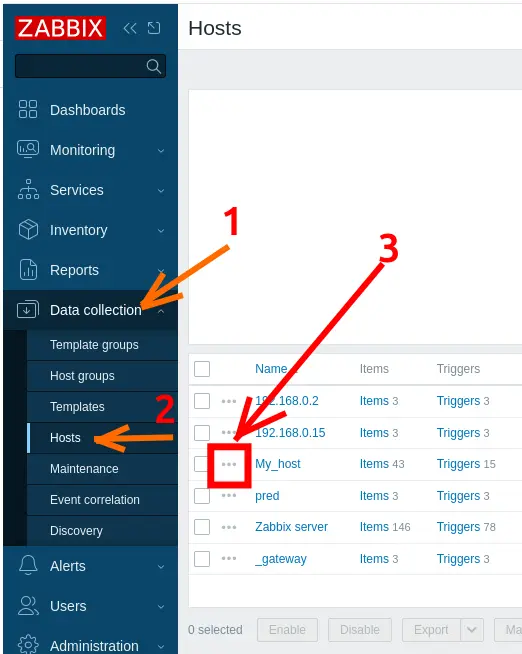
Select the desired host (or a Template) and go to Items.
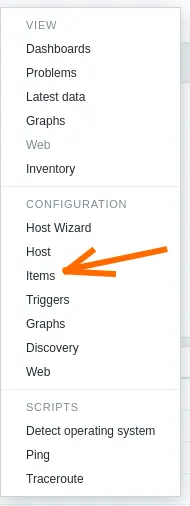
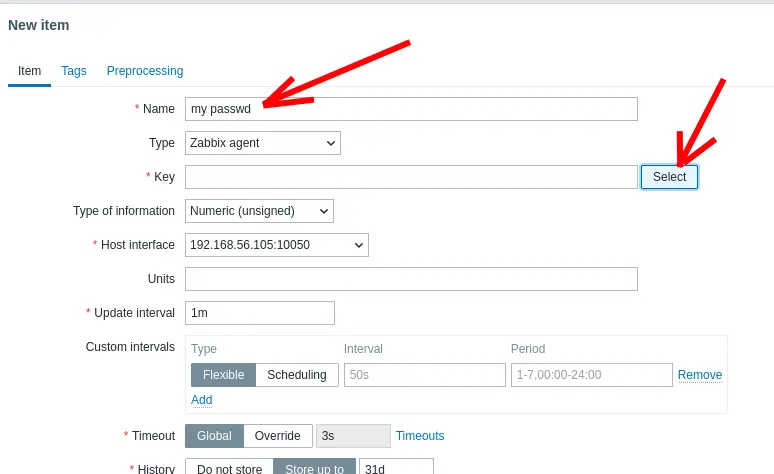
Click on Create item and fill in the following information:
- Name: /etc/passwd file integrity
- Type: Zabbix agent
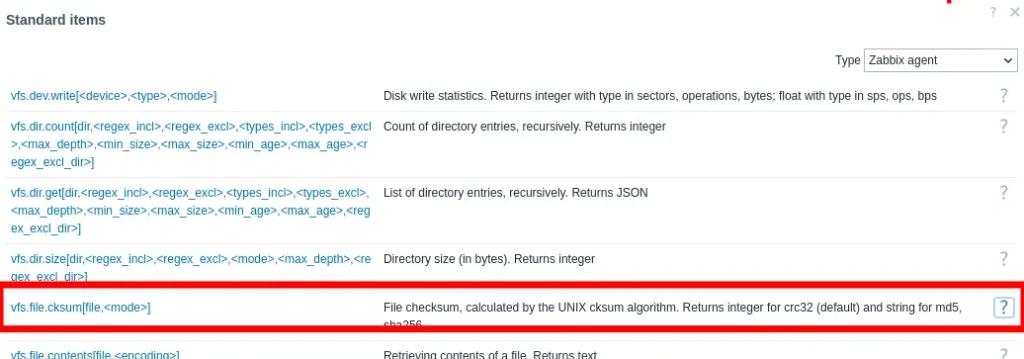
- In the “Key” field, click on Select.
Then select “vfs.file.cksum[/etc/passwd]“.
Now let’s change the file location and name by clicking on the field below.
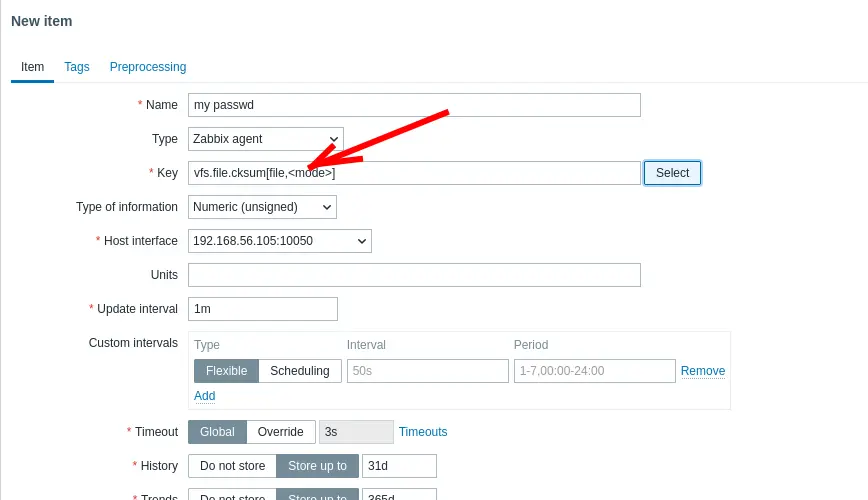
Now, let’s enter the path and name of the file we are going to monitor. In our practical case, it is “/etc/passwd“.
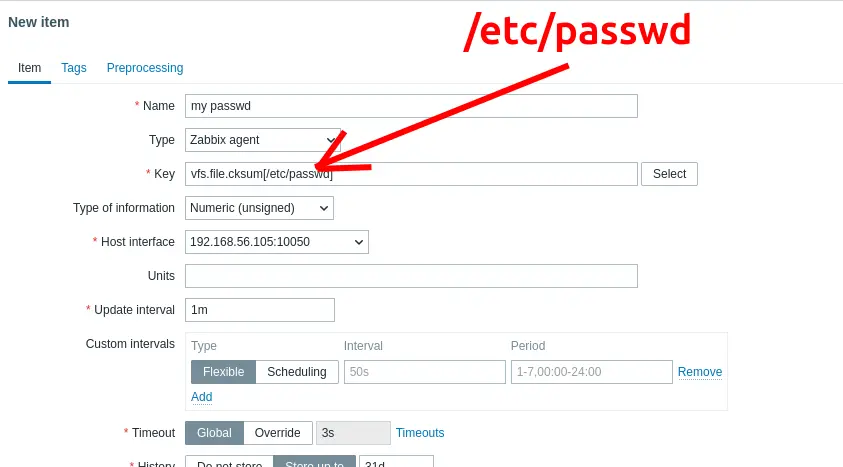
After that, change the “Update Interval” field. In our case, we are leaving it at “1m” because we want to show the moment the file is changed in real time. In production environments, we can set this value higher.
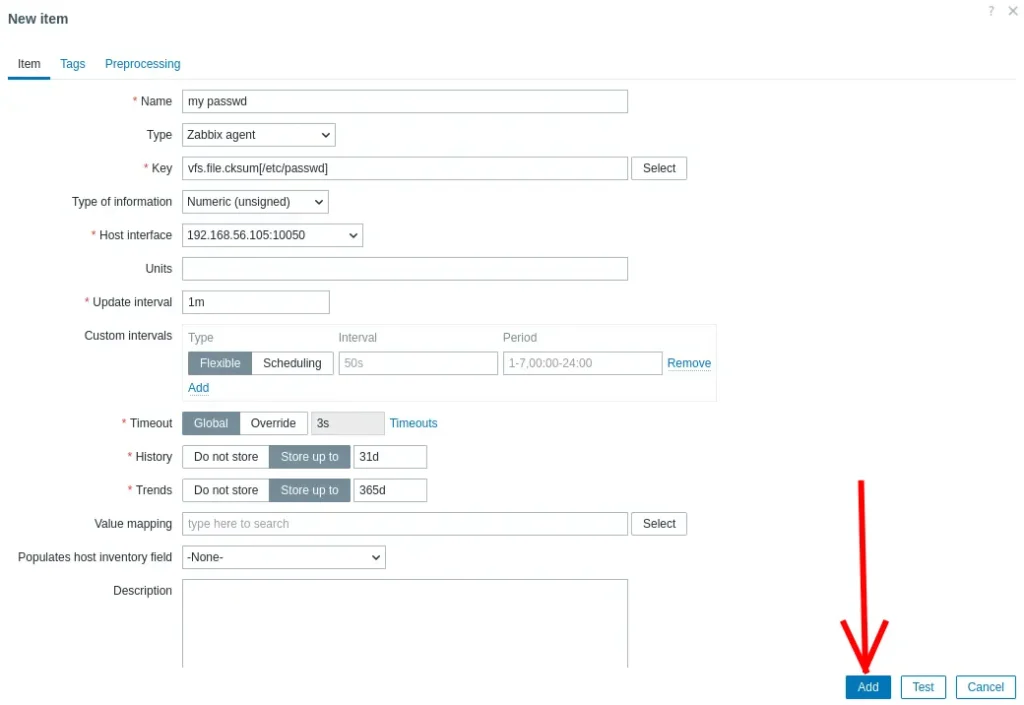
Type of information: Numeric (unsigned)
Update interval: 5m (Optimization Tip: Do not use 1m in production. Configuration files rarely change. Using 5m or 10m saves valuable resources).
History storage: enter the value that makes the most sense for your audit, such as 90d.
Click Add. Zabbix is now calculating the CRC32 hash of this file at every time interval you defined.
Step 2: Creating the Security Trigger
Now we need intelligence. Zabbix must trigger an alert IF the current hash is different from the previous hash.
Still on the Host/Template, go to the Triggers tab.
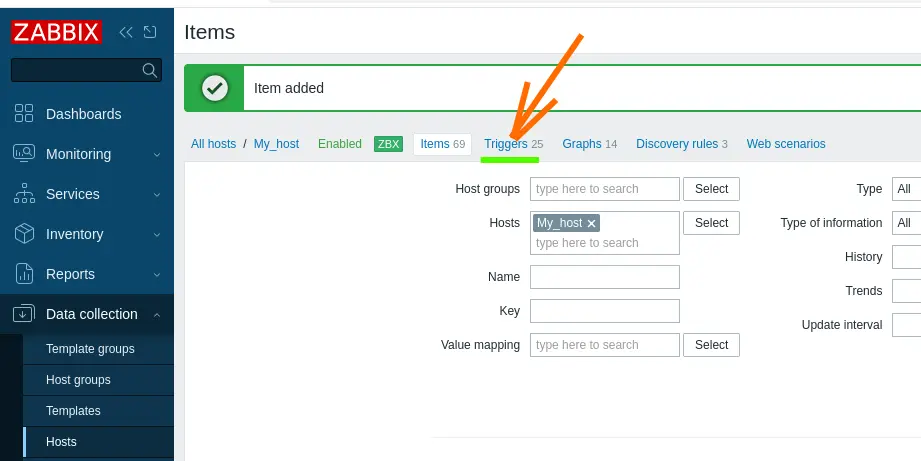
Click on Create trigger.
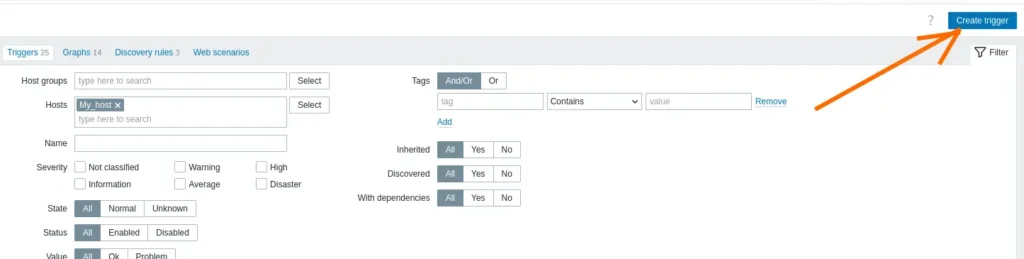
Carefully fill in the alert properties:
Name: alert my passwd {HOST.NAME}
Severity: High (or Disaster)
Expression: click on Add.

Now click on Select.
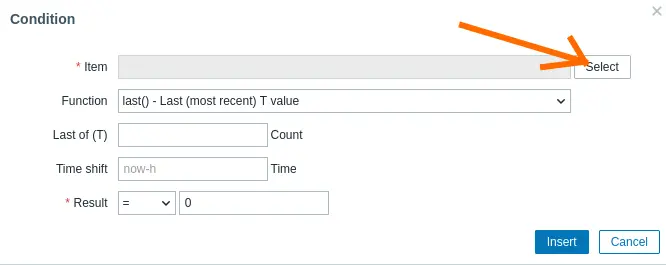
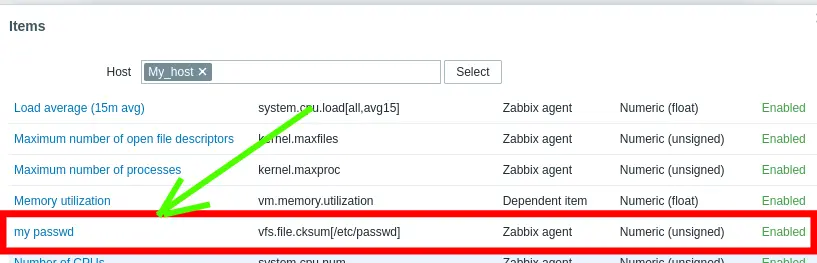
Search for the item you created. In our case, the created item was “my passwd“.
After selecting the item, let’s click on “Insert“.
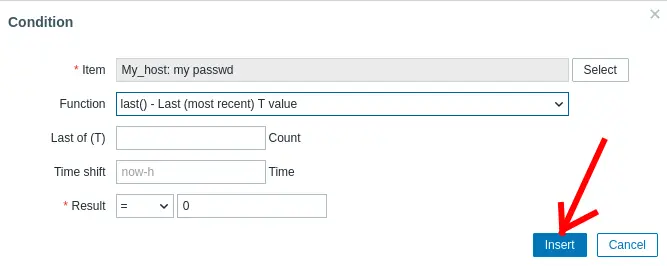
We can see that data has been added to the “Expression” field.
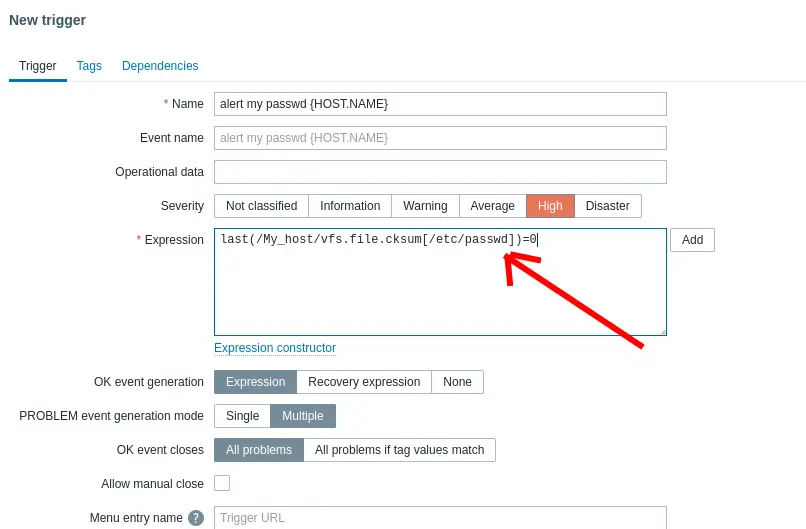
Now in the “Expression” field, we will use the change function or value comparison. The logic is: “Is the current value different (<>) from the last value?”
last(/My_host/vfs.file.cksum[/etc/passwd]) <> last(/My_host/vfs.file.cksum[/etc/passwd], #2)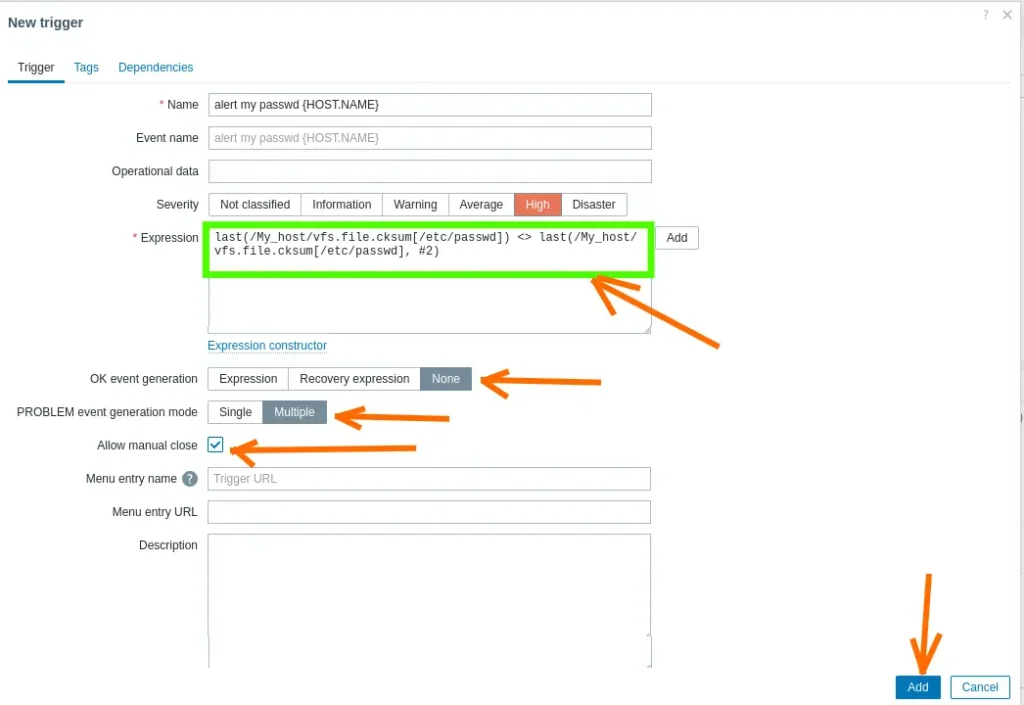
We will also select the fields indicated below to prevent an update to the password file from overwriting the alarm.
- “OK event generation = None” , you can change it to None.
- Result: The alert triggers when the file changes and remains fixed on the Dashboard forever, until an administrator goes there, checks what happened, and closes the alert manually.
- “PROBLEM event generation mode = Multiple“.
- And select “Allow manual close“.
Click Add.
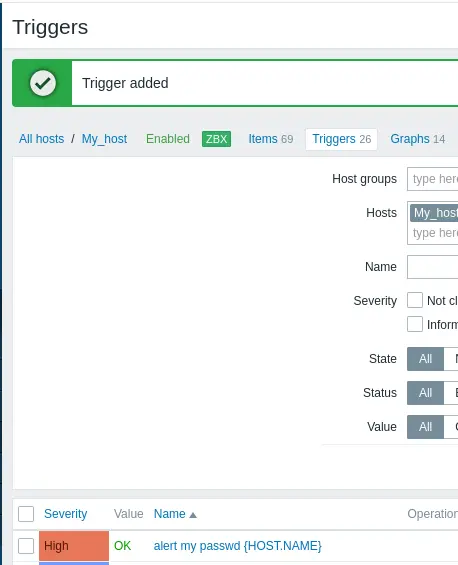
We can see in the figure below that the Trigger was added successfully.
Step 3: The Trial by Fire (Simulating a Backdoor)
There is no point in configuring security if we do not validate it with a real scenario. Instead of just editing the file, let’s simulate the behavior of an attacker trying to ensure Persistence.
Imagine that an attacker gained access to the shell and, to ensure they can come back later, they create a hidden user. Let’s do this:
Access your Linux server via terminal.
Execute the command to create a fake “intruder” user:
sudo useradd -M -s /bin/bash backdoortest
(Note: This command adds a new line to the end of the /etc/passwd file, drastically altering its hash).
Wait for the Zabbix collection cycle (or force a manual check).
Go to the Dashboard. The security alert should trigger immediately.
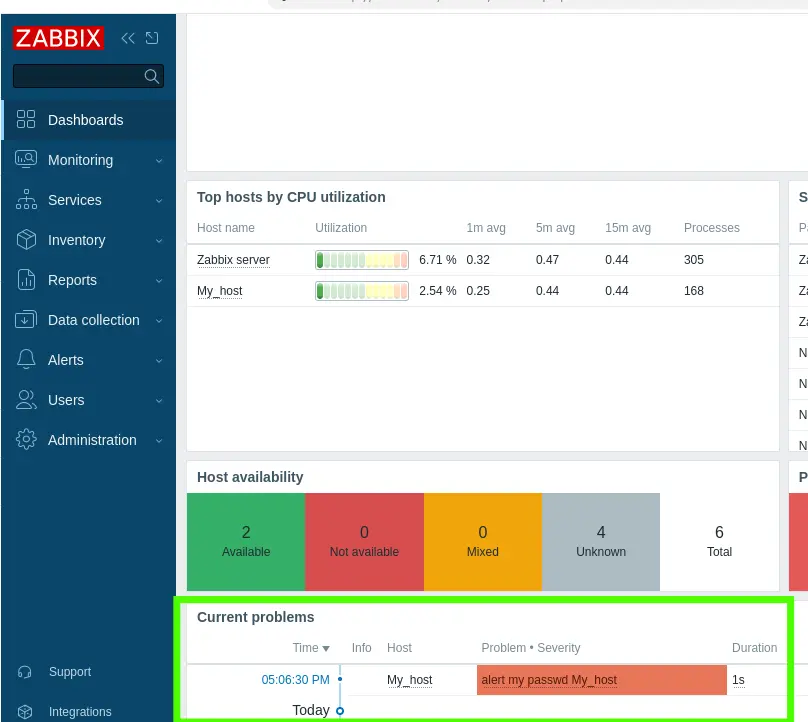
By clicking on the alert details, you will know that the users file was modified without authorization. In a real scenario, this is the equivalent of a fire alarm ringing in your company’s SOC.


Juliana Mascarenhas
Data Scientist and Master in Computer Modeling by LNCC.
Computer Engineer