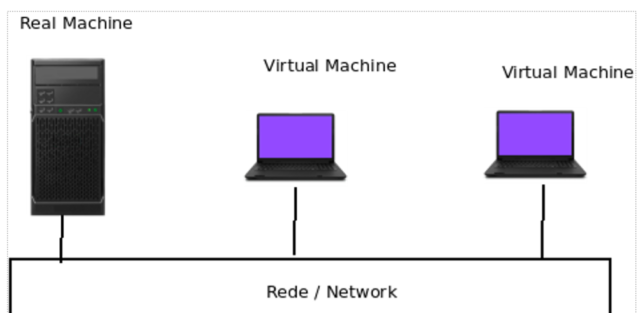
Do you need your virtual machines (VMs) in VirtualBox to communicate with each other in isolation from your network and also isolated from the Internet? The “Internal Network” mode is the ideal solution for this scenario.

Using VirtualBox in Internal Network mode is quite different from other network configuration forms in VirtualBox.
For example, the Internal Network mode is quite different from the standard “NAT” mode (which isolates each VM) or the “NAT Network” which creates an exclusive private virtual network for your VMs to connect to each other and have Internet access.
In this complete guide, we will show you how to configure a network in VirtualBox using the Internal Network mode.
We will use recent versions of VirtualBox and test the communication of VMs (for example, a Windows and a Linux one) using the ping command.
Prerequisites
Before starting, ensure you have:
- Oracle VM VirtualBox (version 7.x or higher) installed.
- At least two virtual machines already created (in this guide, we will use VM-1 and VM-2). They can be powered off.
Step 1: Connect your VMs to the Internal Network
The process we are going to do here must be repeated for VM-1 and VM-2:
On the main VirtualBox screen, select the virtual machine (e.g., VM-1) you want to connect.
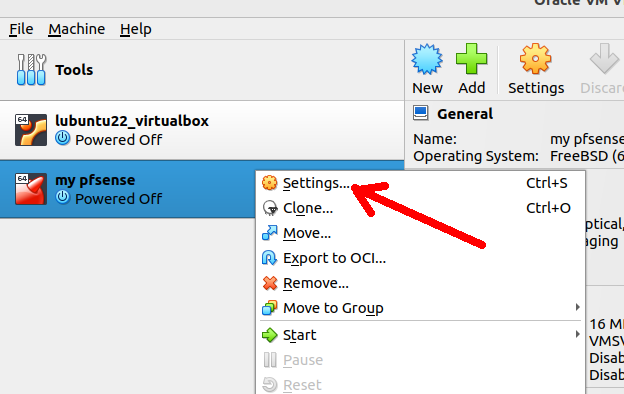
With the VM selected, click on Settings (the gear icon).

Step 1: Go to the Network section.

Step 2: On Adapter 1 (or another free adapter), check the Enable Network Adapter box.
Step 3: In the Attached to: field, change the option from NAT (default) to Internal Network.
Step 4: Click OK.
Important: Do the exact same process for VM-2. Both must be connected to the same Internal Network.
Step 2: Configuring manual IP for the VMs
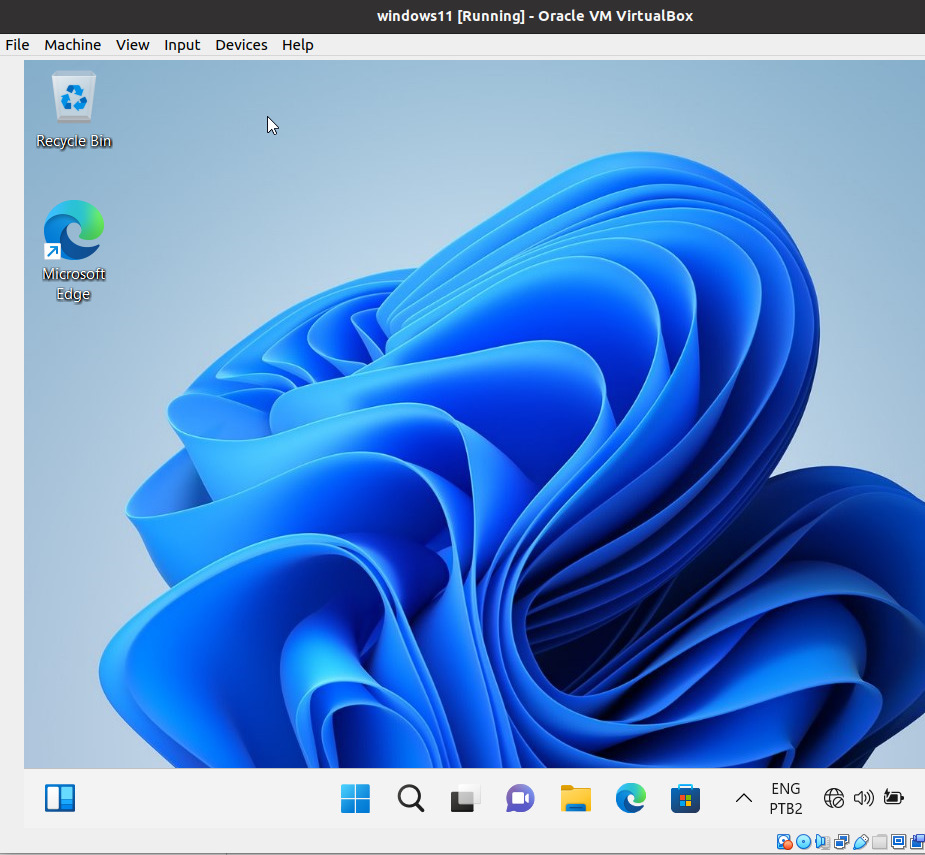
Now, let’s configure the network interface of each virtual machine so they can communicate. In this case, we will configure a Windows machine and a Linux machine.
Configuring manual IP on a Windows VM (VM1)
Initially, let’s click on the search icon and then type networks or “network”. Next, let’s click on network settings or “Ethernet settings“.

Now, let’s assign an IP and to do that let’s go to the “IP assignment” line and click on “Edit”.

Next, let’s change it to “Manual” as shown in the figure below.

After that, let’s click the button below to turn IPv4 “on”.

After that, we will assign the addresses which we will detail below the figure.

- 1: IPv4 switched to “on”.
- 2: The virtual machine’s network interface IP. (this will be the IP that the VM will have and will be used so that other VMs can access it)
- 3: The network mask, in this case we are using a class C network so we will use the mask “255.255.255.0”.
- 4: The Gateway IP address. In this case, we will put the IP of the other machine, but note that in this network we are building we do not have a Gateway. Therefore, we will choose the IP of the other machine on the network.
- 5: DNS Server. In this case, we do not have a DNS server but we will put the IP of the other machine on the network.
- 6: Click on save.
After configuring, we can see in the figure below that the machine received the IP we designated.

We can also verify the machine’s IP using the terminal. To do this, follow the example in the figure below. Click on the search icon, then type “cmd” and then click on “Command Prompt”.

Inside the terminal, type the command below and you will see your machine’s IP.
ipconfig
Configuring manual IP on a Linux VM (VM2)
On the Linux machine, or the Linux VM, we will look for the network icon. Next, we will right-click and then choose the Edit connections option.

Next, we will choose the wired connection, in our case it is “Wired connection 1” and we will click on the gear icon.

Right after, we will click on the “IPv4 Settings” tab and then we will change the mode to “Manual“. (In this case, the network interface was previously in automatic mode getting IP via DHCP.)

Now, let’s click on “Add” and type the IP address.

In this case, we will insert the machine’s IP which will be “192.168.0.2” and the mask which will be “255.255.255.0”. After inserting the mask, press ENTER and in the Gateway place press ENTER as well because we are not going to use a Gateway in this configuration.

In the figure below, we can click on save to confirm the settings made.

On Linux, it is very common to have to restart the network after a configuration change. To do this, we can access the terminal and type the command below.
sudo systemctl restart NetworkManager
Now, we can type the command below to see our new IP.
ip a
Step 3: Testing Communication Between VMs (Ping)
The moment of truth has arrived. Let’s check if the two virtual machines can communicate.
In this case, we will choose the first machine (the Windows virtual machine).
Let’s open the machine terminal (we have already done this before in this tutorial).
Next, let’s use the ping command to test connectivity.
ping 192.168.0.2
In this case, we are on the machine 192.168.0.1 and we are sending a ping to the machine 192.168.0.2. We can see in the figure that the ping command was successful.
Troubleshooting
“Ping failed” or “Destination host unreachable”. What to do?
The most common cause for ping failure, even with the network properly configured, is the operating system firewall inside the virtual machine.
Windows Firewall: The Windows Firewall, by default, blocks “ping” requests (ICMP protocol).
For testing, you can temporarily disable the Windows Firewall (in “Private Networks”) inside the VM or, more correctly, create an inbound rule to allow “ICMPv4 Echo Request”.
Linux Firewall (UFW/Firewalld): If you are using a firewall like UFW on Ubuntu, verify that it is not blocking incoming subnet traffic.
Conclusion
Congratulations! You have successfully configured a network in “Internal Network” mode in VirtualBox.
Your virtual machines are now on a private network, capable of communicating with each other for client-server testing, security labs, or web development. Additionally, your virtual machines are isolated from your physical machine and the Internet.
This network mode is a powerful and essential tool for any IT or cybersecurity professional who needs an isolated network of virtual machines.
see more:
Configure VirtualBox NAT Network: VM Communication and Internet Access Guide
VirtualBox: Bridge Network – When to use it?
How to Install Kali Linux on VirtualBox: Step-by-Step Guide for Beginners
Install Windows 11 in VirtualBox

Juliana Mascarenhas
Data Scientist and Master in Computer Modeling by LNCC.
Computer Engineer
How to Configure OSPF in Packet Tracer (Step-by-Step)
Static Routing in Packet Tracer: Connecting 2 Networks
How to Configure Docker to Run Behind a Proxy
In corporate environments, it is very common for servers to lack direct internet access. All…
Tutorial: Using Port Forwarding in Packet Tracer
Tutorial: Web Server in Packet Tracer (Client-Server)