Deploying Zabbix 7.0 LTS with Docker Compose allows you to bring up the entire monitoring structure in an integrated and isolated way in containers.
Unlike basic configurations that store passwords in plaintext in .env files (vulnerable to leaks in Git repositories and readable via docker inspect), this architecture uses Docker Secrets. With this approach, database credentials travel mounted only in RAM (tmpfs in /run/secrets/), meeting good security practices for corporate and production environments.
Architecture Components
For Zabbix to function completely, the structure brings up four integrated services in a dedicated network:
- MySQL Server (8.0): Relational database responsible for storing configurations, metrics, and history.
- Zabbix Server (7.0 LTS): The core of the solution, in charge of processing collections, calculating triggers, and triggering alerts.
- Zabbix Web Apache (7.0 LTS): Web graphical interface for management, visualizing graphs, maps, and dashboards.
- Zabbix Agent 2 (7.0 LTS): Modern agent written in Go to monitor the health of the local environment itself with support for simultaneous checks.
Prerequisites
- Linux operating system (Ubuntu Server or Debian recommended).
- Docker and the Docker Compose v2 plugin installed. Click here to install.
- Free ports on the server:
8080(HTTP Web Interface)8443(HTTPS Web Interface)10051(Zabbix Server Communication)10050(Zabbix Agent Communication)
- Basic knowledge of the Linux terminal and
sudopermissions.
Step 1: Create the Directory Structure and Git Protection
Create the main project folder, the restricted directory for secrets, and the persistence directories for alert scripts and custom agent configurations:
mkdir -p ~/zabbix/secrets
mkdir -p ~/zabbix/zbx_env/usr/lib/zabbix/alertscripts
mkdir -p ~/zabbix/zbx_env/etc/zabbix/zabbix_agentd.d
cd ~/zabbix

Configure .gitignore
To prevent passwords or local files from being accidentally pushed to a Git repository (GitHub/GitLab), create a .gitignore file in the project root:
cat > .gitignore <<'EOF'
secrets/
*.txt
zbx_env/
EOF
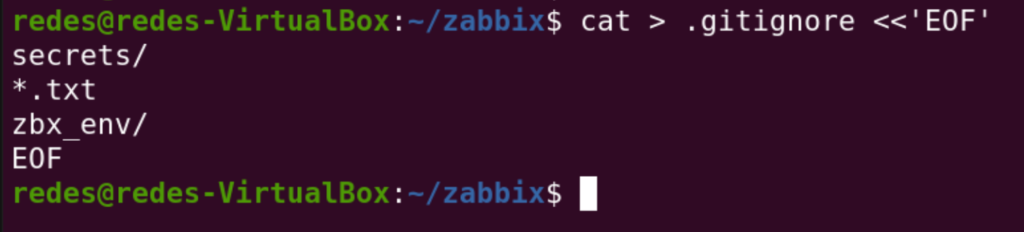
Let’s explain what this script does:
- Below we are ignoring secrets and passwords:
secrets/
*.txt - Next, we will ignore local environment directories and finish the script:
zbx_env/
EOF
If we run an ls in this folder, we will see that the directories were created:

Step 2: Create Docker Secrets
Create the files containing the MySQL root user password and the zabbix user password.
Attention: Replace the example values below with strong passwords before running the commands. We use the
printfcommand instead ofechoto prevent a hidden line break (\n) from being written to the end of the password file.
Initially, we will set the MySQL root password:
printf "mysql123" > secrets/mysql_root_password.txtThen, we will set the ‘zabbix’ user password in the database:
printf "zabbix123" > secrets/mysql_password.txt
Remember to set strong passwords; we are using generic passwords here only because it is an educational tutorial.
You can check the newly created files with the ls command.

Restrict permissions in Linux
Apply the principle of least privilege to ensure that only the account owner can access the folder and read the password files:
chmod 700 secrets
chmod 644 secrets/*.txt
Step 3: Create the docker-compose.yaml file
Create the container orchestration file. This configuration already includes:
- The
--log-bin-trust-function-creators=1parameter in MySQL 8.0, allowing the Zabbix Server to create the initial database triggers and functions without needing therootpassword. - Health check (healthcheck) to ensure that the Zabbix Server only starts after the database is 100% operational.
cat > docker-compose.yaml <<'EOF'
services:
  # 1. MySQL 8.0 Database
  mysql-server:
    image: mysql:8.0
    container_name: mysql-server
    command:
      - mysqld
      - --character-set-server=utf8mb4
      - --collation-server=utf8mb4_bin
      - --default-authentication-plugin=mysql_native_password
      - --log-bin-trust-function-creators=1
    volumes:
      - mysql-data:/var/lib/mysql
    environment:
      - MYSQL_DATABASE=zabbix
      - MYSQL_USER=zabbix
      - MYSQL_ROOT_PASSWORD_FILE=/run/secrets/mysql_root_password
      - MYSQL_PASSWORD_FILE=/run/secrets/mysql_password
    secrets:
      - mysql_root_password
      - mysql_password
    restart: always
    networks:
      - zabbix-net
    healthcheck:
      test: ["CMD-SHELL", "mysqladmin ping -h localhost -u root -p$$(cat /run/secrets/mysql_root_password) --silent"]
      interval: 10s
      timeout: 5s
      retries: 5

  # 2. Zabbix Server (7.0 LTS)
  zabbix-server:
    image: zabbix/zabbix-server-mysql:ubuntu-7.0-latest
    container_name: zabbix-server
    ports:
      - "10051:10051"
    volumes:
      - ./zbx_env/usr/lib/zabbix/alertscripts:/usr/lib/zabbix/alertscripts
    environment:
      - DB_SERVER_HOST=mysql-server
      - MYSQL_DATABASE=zabbix
      - MYSQL_USER=zabbix
      - MYSQL_PASSWORD_FILE=/run/secrets/mysql_password
    secrets:
      - mysql_password
    restart: always
    networks:
      - zabbix-net
    depends_on:
      mysql-server:
        condition: service_healthy

  # 3. Zabbix Web Frontend (Apache)
  zabbix-web:
    image: zabbix/zabbix-web-apache-mysql:ubuntu-7.0-latest
    container_name: zabbix-web
    ports:
      - "8080:8080"
      - "8443:8443"
    environment:
      - ZBX_SERVER_HOST=zabbix-server
      - ZBX_SERVER_PORT=10051
      - DB_SERVER_HOST=mysql-server
      - MYSQL_DATABASE=zabbix
      - MYSQL_USER=zabbix
      - MYSQL_PASSWORD_FILE=/run/secrets/mysql_password
      - PHP_TZ=America/Sao_Paulo
    secrets:
      - mysql_password
    restart: always
    networks:
      - zabbix-net
    depends_on:
      mysql-server:
        condition: service_healthy
      zabbix-server:
        condition: service_started

  # 4. Zabbix Agent 2
  zabbix-agent:
    image: zabbix/zabbix-agent2:ubuntu-7.0-latest
    container_name: zabbix-agent
    environment:
      - ZBX_SERVER_HOST=zabbix-server
      - ZBX_SERVER_PORT=10051
      - ZBX_HOSTNAME=Zabbix server
    volumes:
      - ./zbx_env/etc/zabbix/zabbix_agentd.d:/etc/zabbix/zabbix_agentd.d:ro
    ports:
      - "10050:10050"
    restart: always
    networks:
      - zabbix-net
    depends_on:
      - zabbix-server

networks:
  zabbix-net:
    driver: bridge

volumes:
  mysql-data:

secrets:
  mysql_root_password:
    file: ./secrets/mysql_root_password.txt
  mysql_password:
    file: ./secrets/mysql_password.txt
EOF
Let’s paste the script and press Enter.
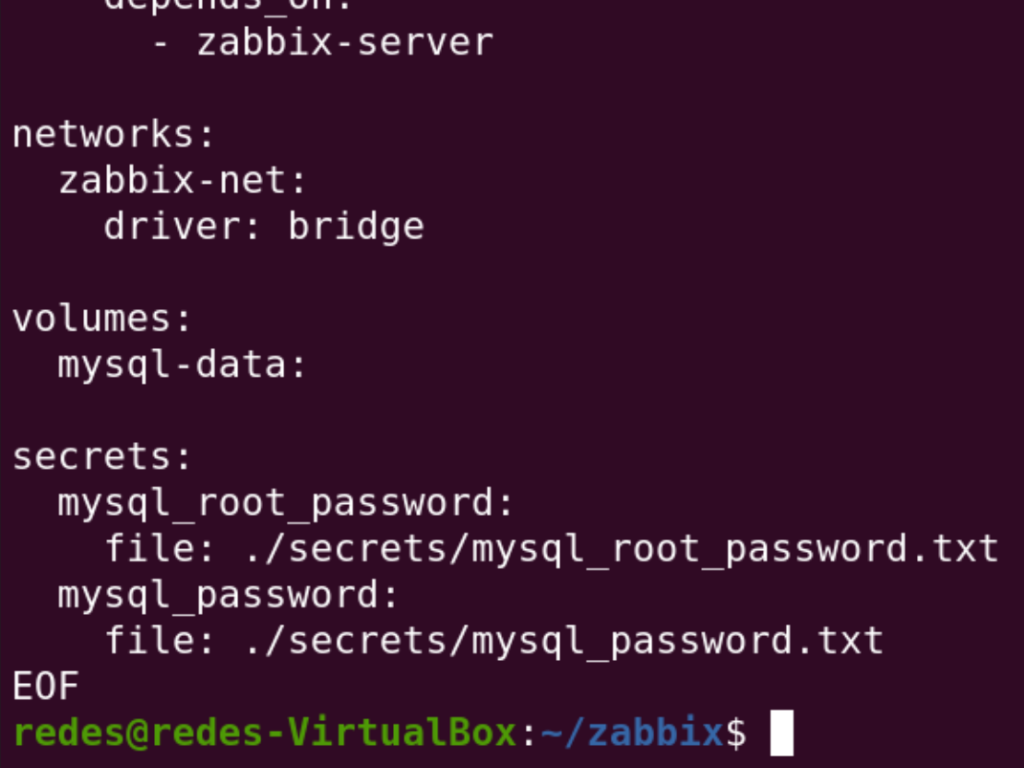
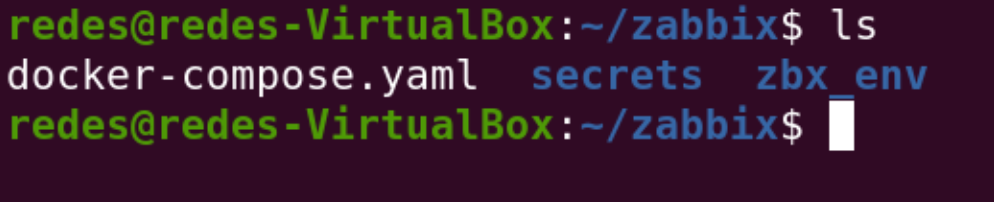
We can verify that the “docker-compose.yaml” file was created with the ls command.
Step 4: Start the Containers
Bring up all services in the background:
sudo docker compose up -d
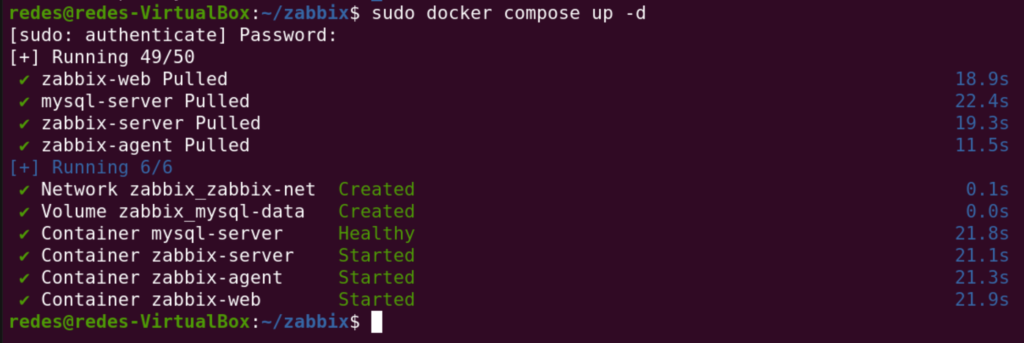
We can see in the figure above that the containers were downloaded, followed by the network and volume configurations, and only then were the containers started.
Note on the first run: MySQL and Zabbix Server will take 1 to 3 minutes to create the entire initial database structure. (it will take a while)
Step 5: Check the Startup Logs
Monitor the Zabbix Server logs to track the creation of the tables and the start of the services:
sudo docker compose logs -f zabbix-server

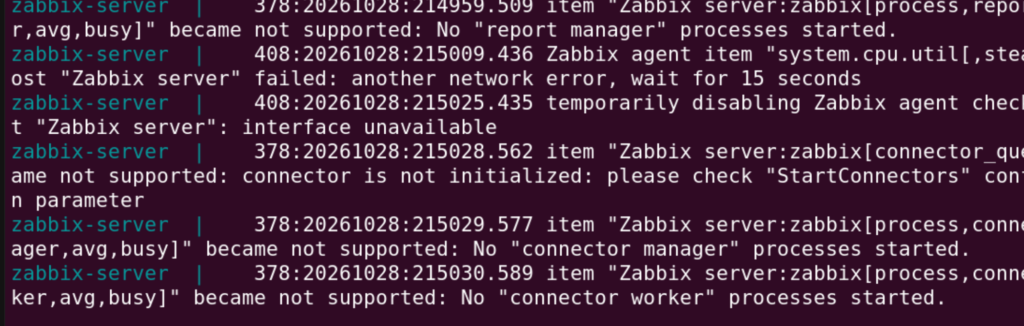
Wait until you see the confirmation that the processes have started without critical errors:
You will see something similar to what we see in the figure below:
Press Ctrl + C to exit the log view.
Step 6: Access the Web Interface
Open your browser and access the server’s IP address on port 8080 (or localhost if on the local machine):
http://YOUR_IP:8080
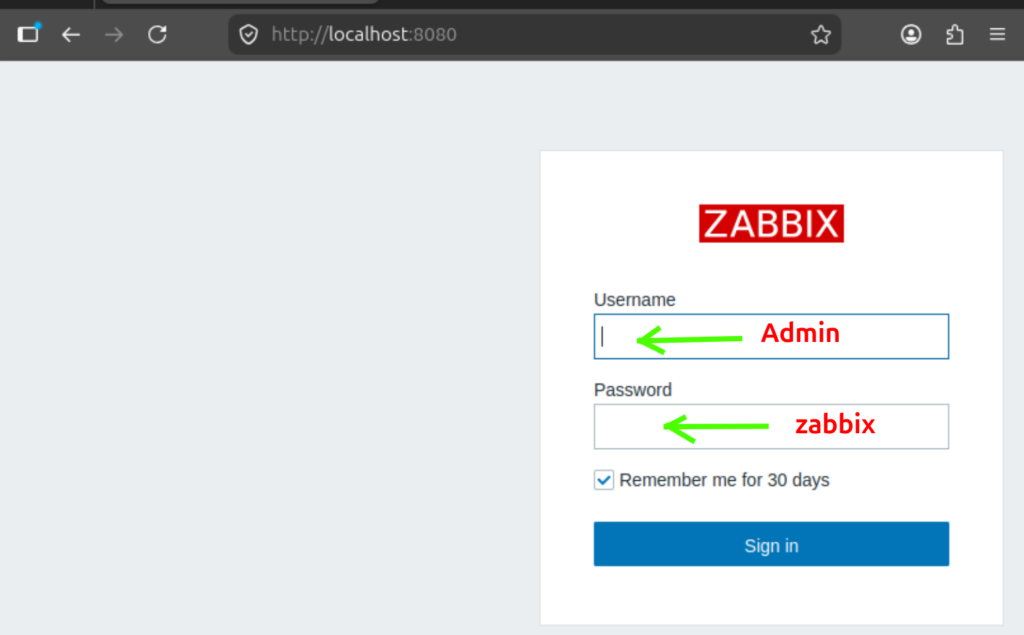
Use the default Zabbix factory credentials:
- User:
Admin(with a capital “A”) - Password:
zabbix
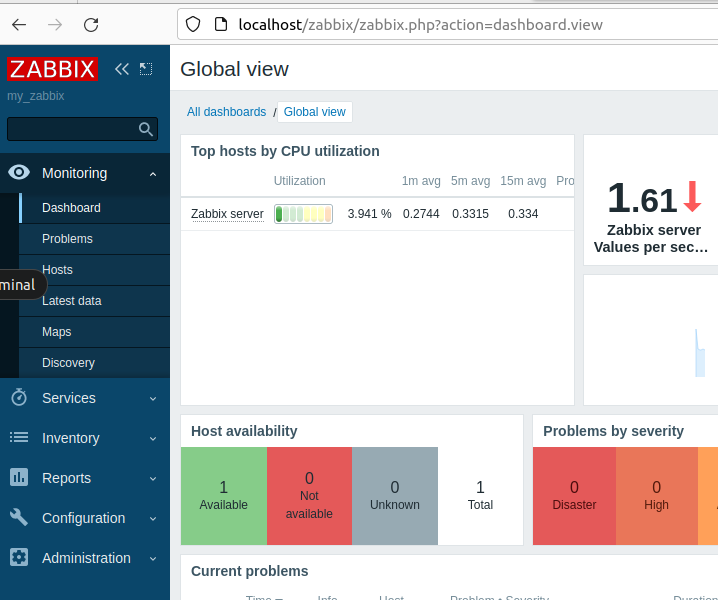
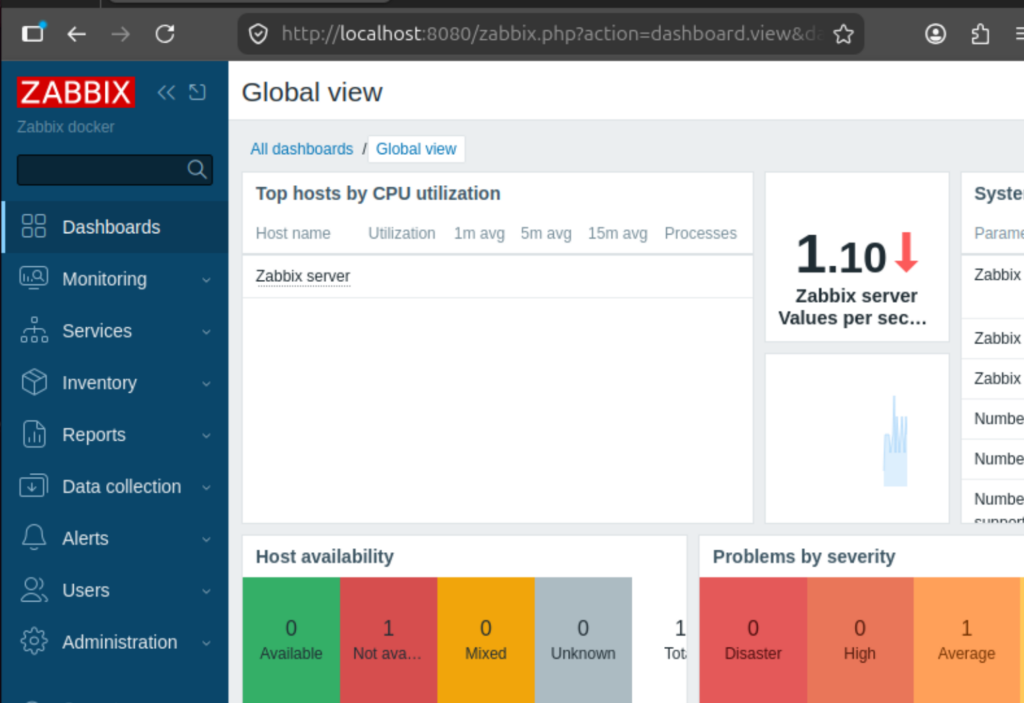
It might take a little while, but then we will see a screen like the one in the figure below.
Step 7: Configure the “Zabbix server” Host to Use the Agent
Zabbix comes pre-configured with a host named Zabbix server pointing to the IP 127.0.0.1:10050. Since the agent is running in another container on the Docker network, it is necessary to adjust the connection interface:
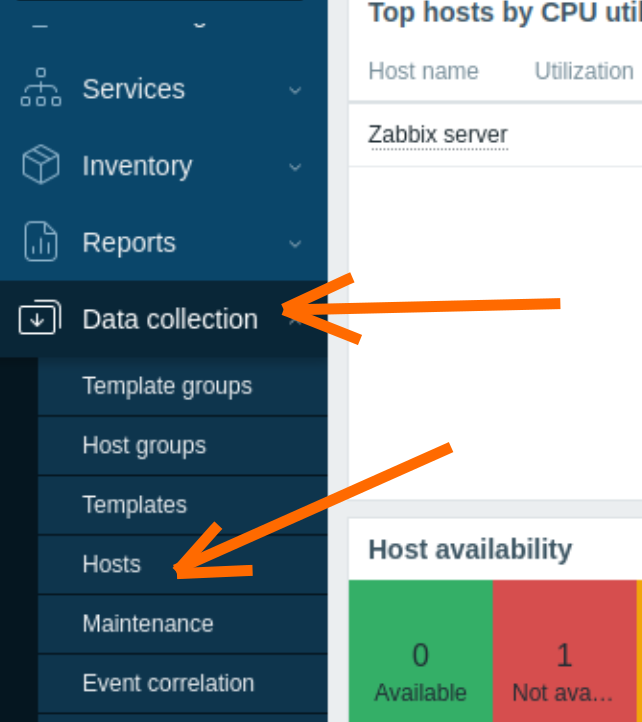
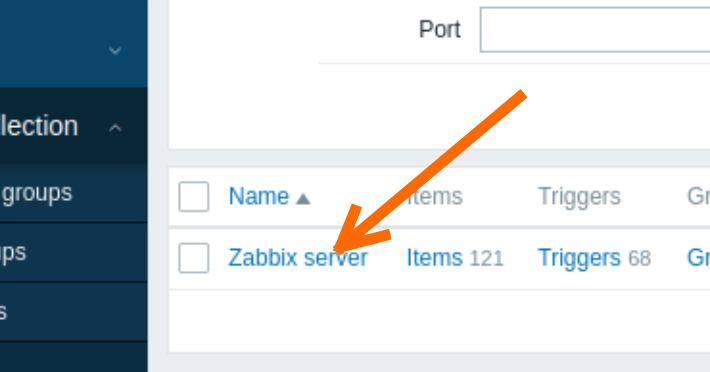
In the left side menu of the web interface, go to Data collection → Hosts.
Click on the host name Zabbix server.
- In the Interfaces section, locate the line corresponding to the Agent type.
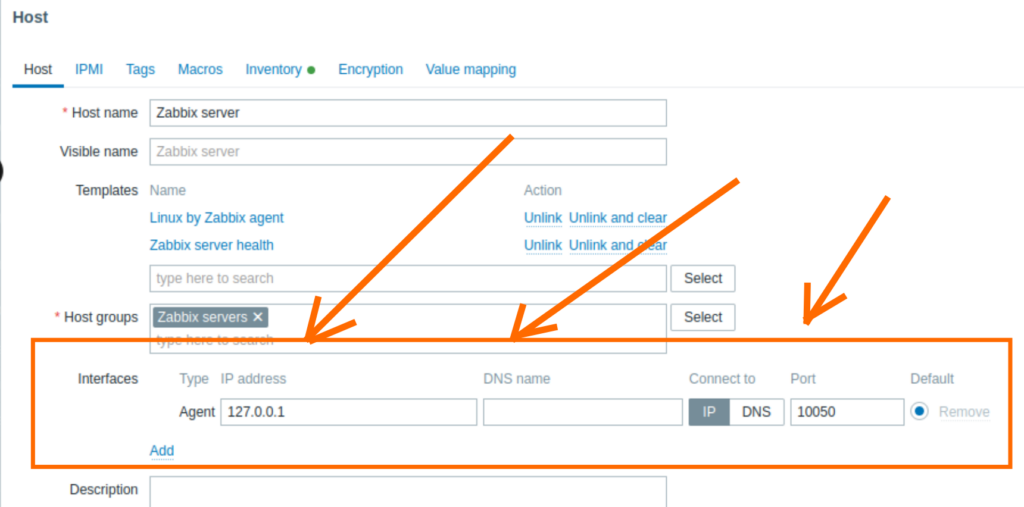
Make the following changes:
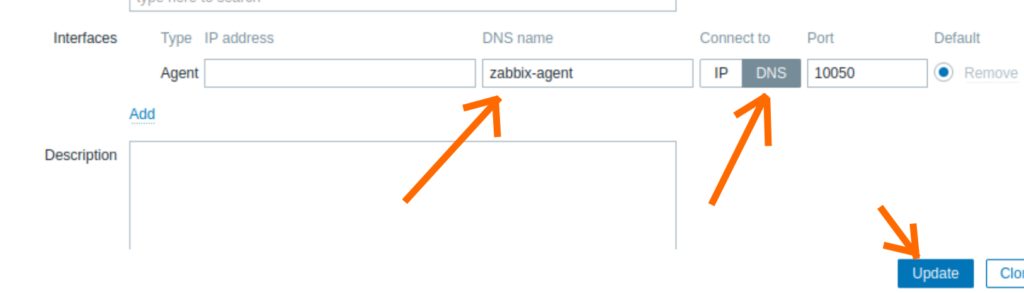
Connect to (Connect to): Change from IP to DNS.
DNS name (DNS name): Type zabbix-agent (in lowercase letters and without spaces).
Port (Port): Keep 10050.
Click the Update button at the bottom of the page.
Step 8: Confirm Availability
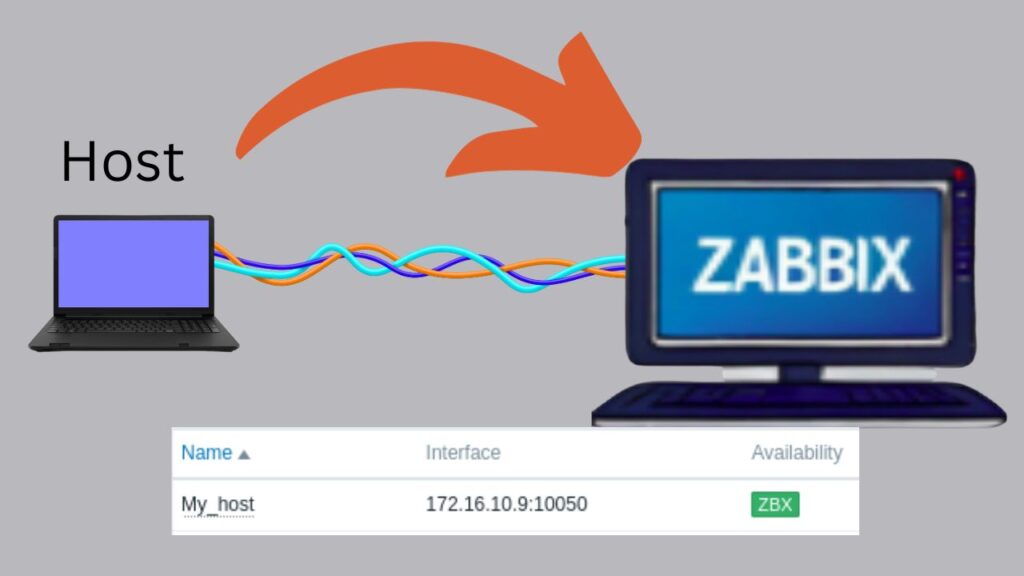
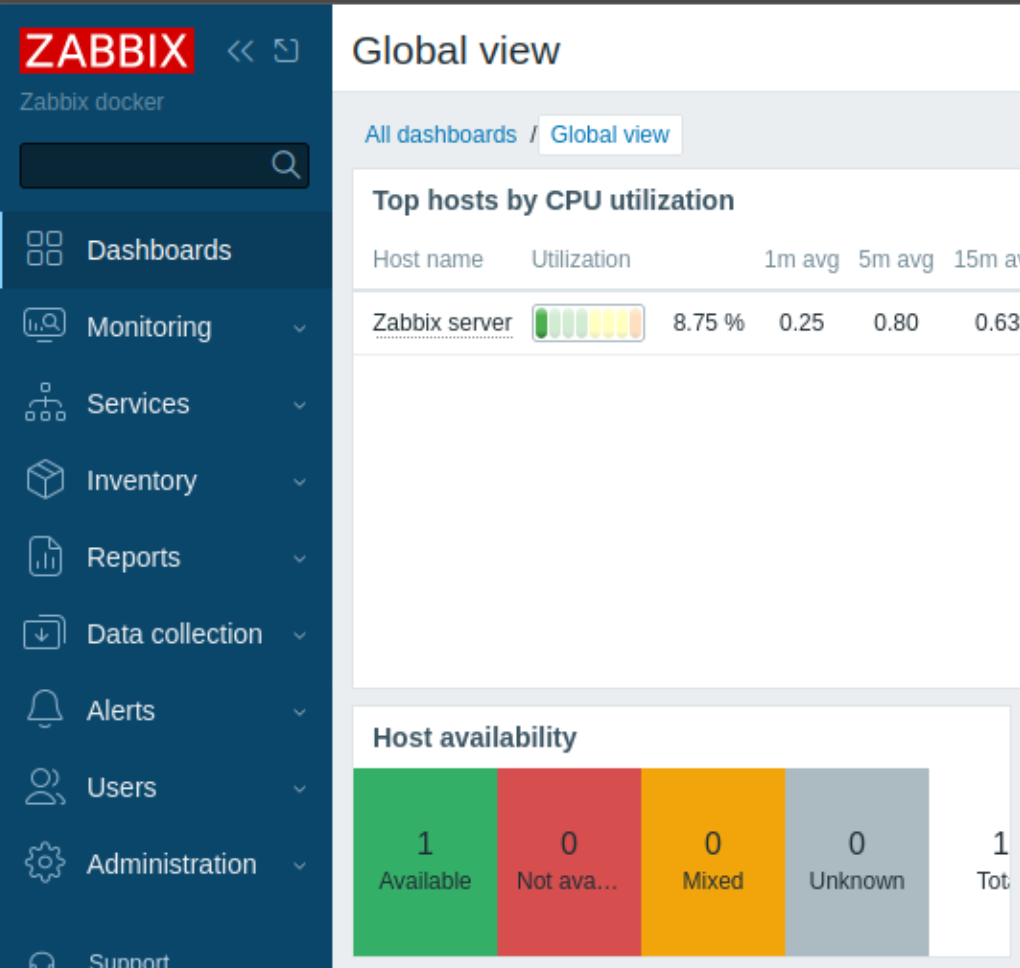
Wait 1 to 2 minutes and return to the Data collection → Hosts screen. Observe the Availability (Availability) column: the ZBX icon will turn green, confirming that the agent is responding to the server’s collections.

Now, by clicking on Dashboards, we will see the zabbix server being monitored.
If the icon remains red or gray, test the communication manually by running:
sudo docker exec -it zabbix-server zabbix_get -s zabbix-agent -k agent.version
Container Monitoring vs. Physical Machine:
The containerized agent monitors the isolated resources of the container itself. If you want to monitor the actual hardware and processes of the host operating system (Linux host), install the
zabbix-agent2package directly on the server’s operating system or map the/procand/sysdirectories into the agent container.
Useful Commands for Day-to-Day Use
| Command | Description |
sudo docker compose up -d | Starts all services in the background |
sudo docker compose down | Stops and removes the containers (data remains saved in the volume) |
sudo docker compose ps | Displays the current status of the containers |
sudo docker compose logs -f | Displays the logs of all services in real-time |
sudo docker compose logs zabbix-server | Displays only the Zabbix Server logs |
sudo docker exec -it zabbix-agent bash | Accesses the internal terminal of the agent container for testing |
Final Security Recommendations
- Change the default Admin password: As soon as you log into the web interface for the first time, go to Administration → Users, click on
Admin, and change the default password (zabbix) for security reasons. - Backup Routine: Schedule periodic database backups by running
mysqldumpdirectly in the MySQL container: sudo docker exec mysql-server mysqldump -u root -p$(sudo cat secrets/mysql_root_password.txt) zabbix > backup_zabbix.sql- Updates: When you want to update the containers to newer versions of the 7.0 LTS
series, run
sudo docker compose pull, and thensudo docker compose up -d.Implantar o Zabbix 7.0 LTS com o Docker Compose permite subir toda a estrutura de monitoramento de forma integrada e isolada em contêineres.
Diferente de configurações básicas que armazenam senhas em texto puro em arquivos
.env(vulneráveis a vazamentos em repositórios Git e legíveis viadocker inspect), esta arquitetura utiliza Docker Secrets. Com essa abordagem, as credenciais do banco de dados trafegam montadas apenas em memória RAM (tmpfsem/run/secrets/), atendendo às boas práticas de segurança para ambientes corporativos e de produção.
Monitor Your Router with Zabbix: The Definitive ICMP Ping Guide
Tags Guide: Organizing and Filtering Monitoring Alerts
Zabbix FIM: How to Setup File Integrity Monitoring
How to Install Zabbix with Docker Compose and Docker Secrets (Zabbix 7.0 LTS)
Zabbix Appliance on VirtualBox
How to install Zabbix on Raspberry Pi

Juliana Mascarenhas
Data Scientist and Master in Computer Modeling by LNCC.
Computer Engineer